Currently the Chrome Password Manager may assume that passwords are the same for logins with similar domain names. In some cases this may be ok, but not all cases. For people not very experienced with the password manager, it appears like a bug. Whether it is a bug or feature, it needs to be addressed.
Bug Example
Here’s an example where a user needs unique passwords, but my chrome created a single password entry, combining them, because they share part of their domain, wd12.myworkdayjobs.com
Screenshot of how they appear in Google Chrome Password Manager. Note the Sites field cannot be changed, just Username, Password, and Note fields.
Bug Workaround
In order to get chrome to use the correct password for each of the 2 domains, you must
Delete the entry that has the same password for both
Search for the entry by entering part of the domain name
Click on result that matches.
Click on Delete button
Manually add 2 separate entries, one for each domain
Click ‘add’ button under the password search bar.
Add Site, Username, Password, and optional note (I like to put the date in case I change password and forget to update google password)
Verify entries exist by searching in password search bar
Once you do that, when you visit either of these 2 domains, google chrome will use the correct password. For more, view Google Help on Chrome Password Manager.
This post summarizes the differences between Unemployed and Underemployed, national and state, and the various occupations in the USA. Then we get into some data as it relates to me, and end with my POV on the Tech Recession in 2024
Unemployment U-3
In the US we hear a bunch about the Unemployment rate, which is defined and tracked by the US Bureau of Labor Statistics (BLS). Their definition for Unemployed is “do not have a job, have actively looked for work in the prior 4 weeks, and are currently available for work” – bls.gov. They get their data by conducting the Current Population Survey (CPS). The CPS measures the extent of unemployment in the country, conducted in the United States every month since 1940. There are about 60,000 eligible households in the sample for this survey, and it includes all 50 states and Washington DC.
Underemployment is a more broad term that loosely means anyone who is willing and able to take a full time job. This includes people who are training, working part-time, and are just discouraged.
Specifically the BLS offers data related to Underemployment under the term U-6 data “Total unemployed, plus all persons marginally attached to the labor force, plus total employed part time for economic reasons, as a percent of the civilian labor force plus all persons marginally attached to the labor force“ Compare to the official unemployment rate, U-3 which is defined “Total unemployed, as a percent of the civilian labor force“ source: https://www.bls.gov/news.release/empsit.t15.htm
And BLS defines “The marginally attached are those persons not in the labor force who want and are available for work, and who have looked for a job sometime in the prior 12 months, but were not counted as unemployed because they had not searched for work in the 4 weeks preceding the survey” source: https://www.bls.gov/cps/lfcharacteristics.htm#discouraged
Data Fall 2024, U-3 vs U-6
U-3 National Data – 4.1% Oct 2024 – Unemployment U-6 National Data – 7.7% Oct 2024 – Underemployment
U-3 California Data – 5.1% avg 2023-Q4 to 2024-Q3. 4.5% avg 2022-Q4 to 2023-Q3 U-6 California Data – 10.0% avg 2023-Q4 to 2024-Q3. 8.9% avg 2022-Q4 to 2023-Q3 source: https://www.bls.gov/lau/stalt.htm
Table: Alternative measures of labor underutilization by state, fourth quarter of 2023 through third quarter of 2024 averages (percent)
BLS has about a dozen top level industries it tracks as well as hundreds of industries that are under those top level ones, identified with NAICS numbers (000000 format). https://www.bls.gov/iag/tgs/iag_index_naics.htm Top Level Industry examples that I identify with are “Information” or “Professional and business services“.
Its important to focus on occupation, not industry, when viewing from individual’s POV. Most of the unemployment data on bls.gov does not separate by occupation. And when it is, it is high level occupation.
Occupation Titles I identify with include “Computer and mathematical occupations 15-0000″ and “Computer and information systems managers 11-3021″. The 2023 employment is 5,417k for Computer and mathematical occupations 15-0000, 3.2% of all occupations The 2023 employment is 613k for Computer and information systems managers 11-3021, 0.37% of all occupations
Therefore about 3.6% (6M out of 168M total) of employment jobs are occupations I identify with (15-0000 and 11-3021)
I wish I could get the 15-000 occupation granularity for other stats, like U-3 and U-6, but I could not find it.
BLS API
BLS does have an api, and can easily retrieve JSON data via GET/POST, but it is limited to certain types of requests. I was specifically interested in finding employment data by occupation as I mentioned earlier, but could not. https://www.bls.gov/developers/api_signature_v2.htm
I did find out about Series ID Formats from https://www.bls.gov/help/hlpforma.htm I also found an easy way to generate Series ID from Labor Force Statistics from the CPS https://data.bls.gov/PDQWeb/ln ex: LNU04000248: Men White All Origins 50 to 54 years All educational levels N/A Unemployment rate Not Seasonally Adjusted Monthly LNU05000248: Men White All Origins 50 to 54 years All educational levels N/A Not in labor force Not Seasonally Adjusted Monthly :
More Definitions and Links
Labor force is either people employed, or unemployed (ones are jobless, looking for a job, and available for work). Must be 16 or older to be considered as part of the labor force So if jobless and not looking (but want a job and are available), NOT in labor force. Or if jobless and looking but unavailable (hospital, armed forces, etc), not in labor force.
Full time is 35 hours or more per week; part time is 1 to 34 hours per week. Involuntary part time – people who want to work full time but cannot for economic reasons (unable to find full time work) https://usafacts.org/articles/is-there-a-labor-shortage-in-the-us
People keep asking, “Why can’t you find a job, the unemployment rate is low?”
As a Techie in California, I am having an incredibly hard time finding a decent job. For about a year I’ve applied to hundreds of jobs and am barely getting interviews. I hear stories from managers that say they are getting a thousand applications for every tech job posting. I hear stories that tech companies prioritize those who have previously worked for them. And so on.
So how is it that we have a historically good (low) unemployment rate yet I cannot get a decent job? I had to dig in the data to find out, and wrote this as a result. What I learned and detailed above is that the Underemployment rate (U-6) is about double the Unemployment rate (U-3) for California. I think Underemployment is a better metric for measuring the job market from individuals perspective, it makes me feel better. I also learned that the occupations I identify with as a techie are only 3.6% of the total, so even if there is 30% or even 50% unemployment in my occupations, it would barely affect the state or national numbers.
Anecdotal evidence and the following also help explain why I cannot get a decent job, which I summarize to be these reasons
In this blog I will summarize my experience of using Google Photos the last 8 years, how it compares to Flickr today, my experience with the Google Photos API, and the gphotos.samo.org site I created to view all your google photos albums as well as the gphotos-albums code I wrote that uses Photos API to power the site.
Since 2017, I’ve loved Google Photos for several reasons, the most important of which is how seamless my photos can be synchronized between my phone and the cloud. I take a photo, and it will be on the cloud soon – your choice to wait to sync using wifi or use your phones data plan. After an event I can review on my desktop browser the photos I took on my phone, deleting ones that may be blurry, doing some basic editing, etc. Again, these changes sync with my phone. The second most important feature to me is the ability to quickly share a single or group of photos with friends, and I love that a shared album can allow others to add their photos to it as well. My third most important feature is the ability to search photos, something Google does far better than anyone else. You can search by people and pets, search by concept like mountain, car, sign, or search by date. You can also search for text inside of picture, or text that you add to the description of a photo. I thought this may be a way to implement something like Flickr tags, but it only sorta works. There’s other features, too, that others may care about, I’m sure you can find many comprehensive reviews elsewhere.
But google has never been great at creating a good browsing experience – they are a search company. As the number of photo albums grows, it becomes more challenging to keep photos and albums organized. Anyone who’s ever used Flickr’s organize tool knows how well one can organize albums. This tool still exists, and even though hasn’t changed in over 15 years, it is hands down way superior than anything Google has to offer. Not only does it help you organize, it helps you browse and provides lots of data on your albums that help you organize it. I still use flickr organize tool to find and browse my photos, albums, and collections from many years ago. I really wish I could have my recent photos on Google organized in the same way, so much so that I am considering porting my photos from Google back to Flickr so I can keep them organized.
Google Photos is not perfect, so I wanted to use the API to see if I can address some of the shortcomings. Google used to have a good web photos application called Picassa, which they bought in 2004. It officially ended in 2016, but the Picasa API worked till Jan 2019. So today the options are just the iPhone app, the android app, the Google Photos Web app (and code that use chrome to manipulate it), or use the Google Photos API. Google does a great job of documenting Google Photos APIs. But it’s not obvious what they cannot do, something I discovered more than once by experimenting or after reading the fine print. Basically the phone and web apps can do much more than the APIs, see list below.
The one thing I wanted the most was just a simple list of all my google photos albums. I found that I needed this almost every time I wanted to organize my photos and albums – and I have hundreds of albums. I especially like creating “Best of” albums, so I often wonder, did I already have a “Best of nature” album? or just “best of outdoors”? Or maybe I want to split big albums into smaller albums – what names should I use? what naming patterns have been used already? Currently the UI will list a few matching albums when you start typing, which is sufficient for beginners or people who don’t have many albums, but totally insufficient for users with many albums.
Therefore I created gphotos.samo.org to list all my albums. On mobile or desktop browser just click on gphotos.samo.org, sign in if you have not recently, and all your albums are listed including total number of photos in each album. Default sort appears to be most recently updated, but can also sort by name or number of items. I also enjoyed using this to experiment with Google Developers Project, where you can see your projects API usage and limits and quotas. I also enjoyed experimenting with Google OAuth2, the common way to use Google to authenticate, or sign users into an application, as well as authorization, which specifies what user can do. You can find more details on that on the gphotos-albums on github.com.
The rest of this blog is lists and tables summarizing my experience with Google Photos API, and an updated comparison of Flickr vs Google. Enjoy!
Google Photos API limitations or gotchas:
Videos are transcoded to lower quality
GPS info is removed from photos metadata
No way to know if album was shared using web or phone method of sharing
No easy way to list albums that a photo is in, can only list photos that are in albums.
No easy way to have date info on albums like “last modified” or “created”. You can get close by finding the dates of the oldest and newest photos in the album.
APIs does not allow retrieving Original Size photos – Raw or Original photos are converted to ‘High Quality’
https://github.com/perkeep/gphotos-cdp uses the Chrome DevTools Protocol to get Originals. It only works with the main library for now, i.e. it does not support the photos moved to Archive, or albums
so-so – gets bad after large amounts of photos (thousands) or albums (hundreds)
share pics on chromecast (TV)
so-so
Yes
2024 notes
Flickr history – Feb 2004 launches, March 2005 Yahoo bought, 2017 Verizon bought Yahoo and Flickr, 2018 smugmug bought, 2022 launches Flickr Foundation to secure photos for 100 years. More at https://petapixel.com/2024/02/10/flickr-turns-20-years-old-today/ or https://en.wikipedia.org/wiki/Flickr
Reasons I love Flickr, in order
Organize – Flickr has an advanced web interface to create and organize photos into albums and collections. This alone is a reason to use flickr.
Reasons I do not love Google Photos, and why I may switch back to Flickr
Hard to manage albums, no way to have collections of albums – something I LOVE in flickr.
Adding Description when I take photo in Android. This one is a bit tricky – Right now, the Google Photos Android app will only show the Description field after the photo has been uploaded to the cloud. This is only an issue when you do not have internet or have very slow internet. With fast internet, you can solve this by force syncing, waiting for it to finish, then clicking Info icon and entering your personal meta details in Description field.
I’ve been using flickr since it started in 2004. It’s been my number one place to store photos – i have over 50,000 at this point. However, I need something else to be my main photo storage. Why? Mainly since now that mobile is taking over, the way I take and manage pictures is different. For me, my phone is my primary camera and has wifi, so should be able to easily upload and manage photos from it. However, I still need to do some advanced functions that are hard to do on a phone, so desktop UI should allow this. Second reason is because yahoo got bought by Verizon, leading me to wonder about flickr’s future.
Enter Google Photos, which I’ve been using now with Android phone for almost 2 years. I tried Google Picassa a while back, didn’t like it for some reasons (desktop focused), loved it for others (good for power users). Picassa has been slowly been replaced by google photos, and most of key features have been ported over.
Adding Description when I take photo in Android.
This one is a bit tricky – Right now, the Google Photos Android app will only show the Description field after the photo has been uploaded to the cloud. This is only an issue when you do not have internet or have very slow internet. With fast internet, you can solve this by force syncing, waiting for it to finish, then clicking Info icon and entering your personal meta details in Description field.
Google Photos got worse with Android 11 – https://www.androidpolice.com/2020/10/15/scoped-storage-on-android-11-is-ruining-the-google-photos-experience/
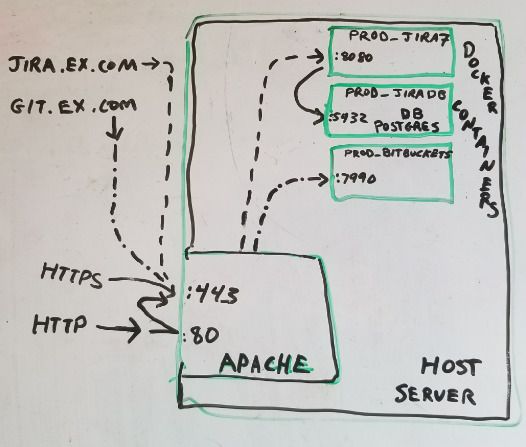
The goal was to easily create and recreate docker instances protected via SSL and accessed by simple URL. Below I explain how to map https://jira.example.com/ and https://git.example.com/ in apache (used as firewall, reverse proxy, content server) to a specified IP:port of Jira and Bitbucket (git) docker container.
Overview
Docker is awesome, can easily create a new web service in minimal time. However, in my case, I want everything to be routed through one machine’s https (port 443). Additionally I wanted to setup Jira and Bitbucket (and possibly more). Previously I had to use github.com to view my private repositories from a web browser. I show how to do this with apache 2.4 and docker on a single Ubuntu Linux machine.
Security – single apache instance serves as reverse proxy and can force all HTTP requests to use HTTPS.
HTTPS certificates – use certbot by Let’s Encrypt to easily install certificates for HTTPS to work for free.
DNS and Virtual hosts – Assuming multiple domains or subdomains all get routed to same apache instance. Will configure apache conf files to map these requests to correct port and path on docker container.
Creating / Starting JIRA and Bitbucket (git) docker containers to listen on a specific port
Note that you should replace example.com everywhere used in this doc with your domain name.
longlonglonglong
DNS
Goal is for several domains, example.com, jira.example.com, test-jira.example.com, git.example.com, test-git.example.com, and bitbucket.example.com, to resolve to the machine where apache will run. There are many ways to do this, I have one A record mapping example.com to an IP, and CNAME records mapping the subdomains to example.com.
Apache Setup
I use Apache as the reverse proxy because of its popularity and my experience with it. If performance is an issue, nginx is probably better. Below you’ll find the important bits from these apache conf files:
> cat /etc/apache2/sites-enabled/example.com.conf
<IfModule mod_ssl.c>
<VirtualHost *:443>

 ServerName example.com

 DocumentRoot /var/www/example.com

 Include conf-available/vhost.logging.conf
 Include conf-available/certbot.example.com.conf
</VirtualHost>
</IfModule>
> cat /etc/apache2/sites-enabled/jira.example.com.conf
<IfModule mod_ssl.c>
<VirtualHost *:443>

 ServerName jira.example.com

 <Proxy *>
   Order allow,deny
   Allow from all
 </Proxy>
 ProxyRequests Off
 ProxyPreserveHost On
 # below must map to docker ip:port setup
 ProxyPass / http://127.0.0.1:8080/
 ProxyPassReverse / http://127.0.0.1:8080/

 Include conf-available/vhost.logging.conf
 Include conf-available/certbot.example.com.conf
</VirtualHost>
</IfModule>
> cat /etc/apache2/sites-enabled/git.example.com.conf
<IfModule mod_ssl.c>
<VirtualHost *:443>

 ServerName git.example.com
 ServerAlias bitbucket.example.com

 <Proxy *>
   Order allow,deny
   Allow from all
 </Proxy>
 ProxyRequests Off
 ProxyPreserveHost On
 # below must map to docker ip:port setup
 ProxyPass / http://127.0.0.1:7990/
 ProxyPassReverse / http://127.0.0.1:7990/

 Include conf-available/vhost.logging.conf
 Include conf-available/certbot.example.com.conf
</VirtualHost>
</IfModule>
With letsencrypt.org, you can get free certificates from a Certificate Authority (CA). I used the cmd-line certbot to install them and update them. Initial setup can take up to 30 minutes, but every 3 months when you renew it should only take a few minutes. I do this on Ubuntu linux, but they have instructions for all the popular flavors of linux. When done, you can verify your installed certificate using https://www.ssllabs.com/ssltest/analyze.html?d=example.com
One thing to note here is that its easiest to have a single certificate to cover domain and subdomains. In January 2018 wildcard certs will be supported, but till then you’ll need to start with something like this:
Docker is the new cool kid on the block, and as such, it is constantly improving. So what I write here may not be exactly what you need to do. In any case, what I did is setup 3 docker containers – one for Jira, one for Bitbucket, and one for Postgres database. If you don’t have experience setting up Jira or Bitbucket, it can be tricky, but Atlassian has pretty good documentation.
I have created a sample docker-compose.yml that covers whats needed on the docker side. As previously mentioned, you will need to replace example.com with your domain name.
The Fluent conference this year was just as good as Fluent 2012 last year, and bigger and better in some ways. I still loved how at then end you walkaway realizing how popular, important, diverse, and interesting javascript still is. I want to echo what I said in last year’s post, that I love seeing javascript used to solve real business problems, but the conference was much more than that.
I’ve been using Heroku for about 10 months now, mostly with node.js. Recently one of our apps was using more web dynos than we thought it needed, so I looked into analyzing performance. I ended up writing my first node packaged module (npm) to solve my problem.
We have one Heroku app that is our main http server, using node.js, express, jade, less, and connect-assets to serve primarily html pages. This talks to a second Heroku app that we call our API server. The API server is also a node.js http server, using mongo as its database, serving json in standard RESTful way. The API server is fast – when the html server is under such load to need 10 web dynos, the api server can easily keep up with only 1 or 2 web dynos. My gut was asking me, are 10 web dynos necessary? And even with 10 web dynos, there were times when requests would timeout or other errors would trigger. Maybe some error or timeout has a huge ripple effect, slowing down things.
So the problem is not to just figure out where time is spent on any one particular request, but where time is spent on average across all requests and all web dynos for the html server. How much time is spent while communicating with the api server? doing some internal processing? or something else in the heroku black box?
The first step was educating myself on existing tools that could help me. We already use New Relic, which is awesome and I highly recommend it to anyone who uses Heroku. At the time New Relic support for node.js was still in beta (still is as of this writing), and one the features supported in other languages (like ruby) is the ability to use a New Relic api to track custom metrics. I thought this would be a great way to track down how much time, on average, is spent in various sections of our code. Too bad it doesn’t work with node.js.
I considered other tools (like these) but the only one worth mentioning was nodetime. For us, nodetime was somewhat useful in that it offered details at levels outside of the application, such as stats on cpu, memory, OS, and http routing. This did not appear to solve the problem (I admit i didn’t read all their docs), but did provide some insight and some validation that things are setup as they should be based on documentation from Heroku and Amazon (Heroku runs on Amazon EC2).
However, nothing gave me what i needed – a high level way to see where time is spent. So I built profile_time (code on github). Here’s a description from the docs:
A simple javascript profiler designed to work with node and express, especially helpful with cloud solutions like heroku.
In node + express environment, it simply tracks the start and end times of an express request, allowing additional triggers to be added in between. All triggers, start, and end times are logged when response is sent.
Where this shines is in the processing of these logs. By reading all logs generated over many hours or days (and from multiple sources), times can be summed up and total time spent between triggers can be known. This is useful when trying to ballpark where most of node app time is spent.
For example, if 2 triggers were added, one before and one after a chunk of code, the total time spent in that chunk of code can be known. And more importantly, that time as percent of the total time is known, so it is possible to know how much time is actually being spent by a chunk of code before it is optimized.
In conclusiion, jade rendering was the culprit. More specifically, compiling less to css in jade on each request was really time consuming (around 200ms per request, which is HUGE). To summarize the jade issue:
Overall I am impressed with Heroku and am quite pleased by how easy it is to creatie, deploy, and monitor apps. Most of my apps have been in node, but also have run php, ruby, and python on apps as well. Heroku is not perfect, I would not recommend for serious enterprise solutions (details on that in another post). It’s great for startups or small businesses where getting stuff up and running fast and cheap is key.
Before trying to build a mobile app, this should be the first question you should ask yourself. And by native, I mean an app that runs on Android, iPhone, iPad, Windows Mobile, or Blackberry. And by web app, i mean something that runs in a mobile browser.
Short answer: If you got deep pockets and lots of developers (like Facebook), and you want features HTML5 can not provide, go native. But really it depends on what you’re trying to do and what resources you have.
The right answer only happens after goals have been identified, both short term and long term. This blog post will not cover all the details needed to answer the question, instead it will provide a few links that cover the details. Note there is also a third option of building a hybrid apps (native apps that get the latest content from the web).
Native apps can cost less, according to an online survey by 40 developers mentioned in a pdf by VDC Research – Dec 2011. The survey or types of people who filled it out are not disclosed.
I hope the links above helped. Remember not to confuse whats best for your app with what other apps do or how they do it. If you’re still not sure, one approach is to design a web app first, and if it doesn’t meet your needs (which should be fleshed out during the design phase), then go native.
Last fall i switched from iPhone to Android and for the most part am happy I did. Apple has great design, but you can only do things the apple way and i wanted more options. One of the things I wanted was more audio playing/managing options. I don’t just want any player, I am picky – I’ve listed my requirements below.
Goal
Sync audio (music and talk/news radio) with Android. Specifically:
Make it easy to create/edit playlist on mac, and sync it with bionic, the way iTunes and iPhone work. Includes adding and removing songs from a existing playlist, and those songs get sync’d .. easily.
Make it easy to do daily syncs of podcasts from iTunes (or skip itunes and sync android with internets)
Make it easy to delete songs/playlists from android.
Do it all for Free.
Environment:
Mac with 5,000+ songs and podcasts in iTunes.
400GB of mp3s on backup drive.
Fast wifi at home, but dsl (slow) between home and internet.
Android bionic phone, limited storage (8GB, can only sync a few playlists of songs from my collection).
Solutions
.
Winamp is similar to the classic program from the 90’s. For android, its a complete and quality program, few bugs. Similar to Doubletwist.
Pros
UI is functionally complete and then some.
Bottom always has a drawer that you can drag up to get info on what is currently playing.
Clicking on winamp lightening bolt logo in bottom right goes to main menu
Has a progress bar showing elapsed and total time of current track, and you can drag current position marker to move to end or beginning of track.
Pressing and holding next/prev arrow buttons goes fwd/back a few seconds in track. Great for fine-positioning tracks over an hour (too hard to do with position marker on progress bar).
You can’t sort songs, but there are 3 useful built-in playlists: Recently Added, Recently Played ,Top Played
Pauses when headphones are pulled out
nice if you’re out and about listening on your headphones and someone asks you a question, you can immediately pull out cord, talk, and then spend time with android to start playing where you left off.
Cons
Updating playlists duplicates them, should replace. You can manually delete older ones by tap and hold, but if you want to auto-sync 5 playlists, you will have to manually delete 5 every time you sync. Gets old real quick.
.
Doubletwist is complete music app, appealing to those who like iTunes
Pros
UI is functionally complete and then some.
Very easy to manage through iTunes, then ready to sync, launch doubeltwist, connect phone via usb, and done
Cons
Adding new songs to existing playlist in iTunes does not update playlist in Doubletwist on phone. However, there is a fix – open Winamp and delete all but most recent version of a playlist, then come back to doubletwist to see most updated version of playlist (see Winamp Cons)
.
Google Music Beta, now Play Music, is Google’s version of iCloud. You sync your music from your computer to the cloud, then either download to android or stream real-time.
Pros
Sync without wires, over the cloud
Stream is useful if you have fast connection and not enough space on device
Cons
Cloud syncing is WAY too slow. Syncing one or two songs is fine, but to sync GB from mac to internet and back to android takes forever.
iSyncr – similar to doubletwist but better according to some. $3
.
Summary
I have been using a combination of the above for months now. I love winamp the most for playing audio for all reasons listed above. I use Dogcatcher to automatically get the latest news and talk radio podcasts, like NPR’s This American Life, AC360 from CNN, the Nerdist, and Comedy Bang-bang. And I like doubletwist to easily keep iTunes playlists on my mac in sync with my android.
Note: I will update these as i try new music apps.
I just completed one of the best tech conferences i’ve ever been to – Fluent javascript conference in SF. O’Reilly did a great job of providing many opportunities to learn more about various facets of the javascript world. These include business, mobile, gaming, tech stacks, detailed in the very useful fluent schedule. There was also tons of buzz around web apps (code shared on client and server), backbone.js, node.js, among other things. It was well organized, with usually about 5 parallel sessions, and enough breaks to consolidate notes, meet other attendees, explore the exhibit hall, or just catchup with email. There was also a few organic meetups at night, but I did not make it to any of those.
I was happy to see discussion around business side of javascript, mainly due to the rise of web apps and HTML5. Even though javascript has been around for 17 years, only in the last few years has there been an explosion of js frameworks and libraries. This is partially attributed to mobile explosion, apple not supporting flash, and a really great dev community (yay github). With all these new tools available, companies can focus more on the bits they care about, allowing them to get new apps, features, and fixes in front of their users faster than ever. Web apps were a very popular discussion area, from the business and develpment side. Specifically two sessions highlighted this. First was how business are “Investing in Javascript” (pdf presentation by Keith Fahlgren from Safari Books. The other was by Andrew Betts from labs.ft.com, discussing the financial time’s web app which allows users to view content offline. Most people know that traditional newspapers are dying, but I liked how Andrew points out “newspaper companies make money selling *content*, not paper”. Also Ben Galbraith and Dion Almaer from Walmart had a fun-to-watch Web vs Apps presentation (yes, its true, tech isn’t always DRY). The main takeway from them (which was echoed throughout the conference) was that web apps are better than native apps in most ways except one – native can sometimes provide a better user experience (but not always). Of course you may still want to build a native app using html5 and javascript, and there are 2 great ways that people do this, using Appcelerartor’s Titanium or phoneGap (now Cordova, apache open-source version). One of the coolest web apps I saw at the conference was from clipboard.com – Watch Gary Flake’s presentation (better look out, pinterest).
For the uber techies out there, there were lots of insights on how companies successfully used various js libraries and frameworks (in other words, whats your technology stack). This is important to pay attention to, since not all the latest and greatest code is worthy to be used in production environments. You should think about stability, growth, documentation, and community involvement. Here’s a few bits I found interesting
stackmob: uses backbone, mongoDB, Joyent and EC2, Scala and Lift, Netty and Jetty
Finally, here are a few other cool tech-related tidbits from the conference. There was soo much good stuff, this is not a complete list, but just a few highlights from my notes
Paul Irish – js/web dev workflow 2013– grunt, livereload, adobe shadow, codekit, brunch, recompiler webstorm
Chris Power’s sharing code between client and server (older presentation)
Elliott Sprehn’s talk on rendering screenshots in js for google feedback (whoa),
Sha Hwang from Trulia.com talking about displaying data beautifully on maps (crime heat map)
Tom Hughes-Croucher (Jetpacks for Dinosaurs) Writing robust Node.js applications





 Before trying to build a mobile app, this should be the first question you should ask yourself. And by native, I mean an app that runs on Android, iPhone, iPad, Windows Mobile, or Blackberry. And by web app, i mean something that runs in a mobile browser.